 Pastely
 Archly
The Screen Time
alternative for Mac
Timecard tracks where your Mac time goes, splits the browser into real websites, keeps it forever, and every evening prints your day as a timecard. No account. Your activity never leaves your Mac.
$5 for the first 1,000 · then $9 · then $29 · one-time payment · 14-day refund

The demo
Watch where a day goes.
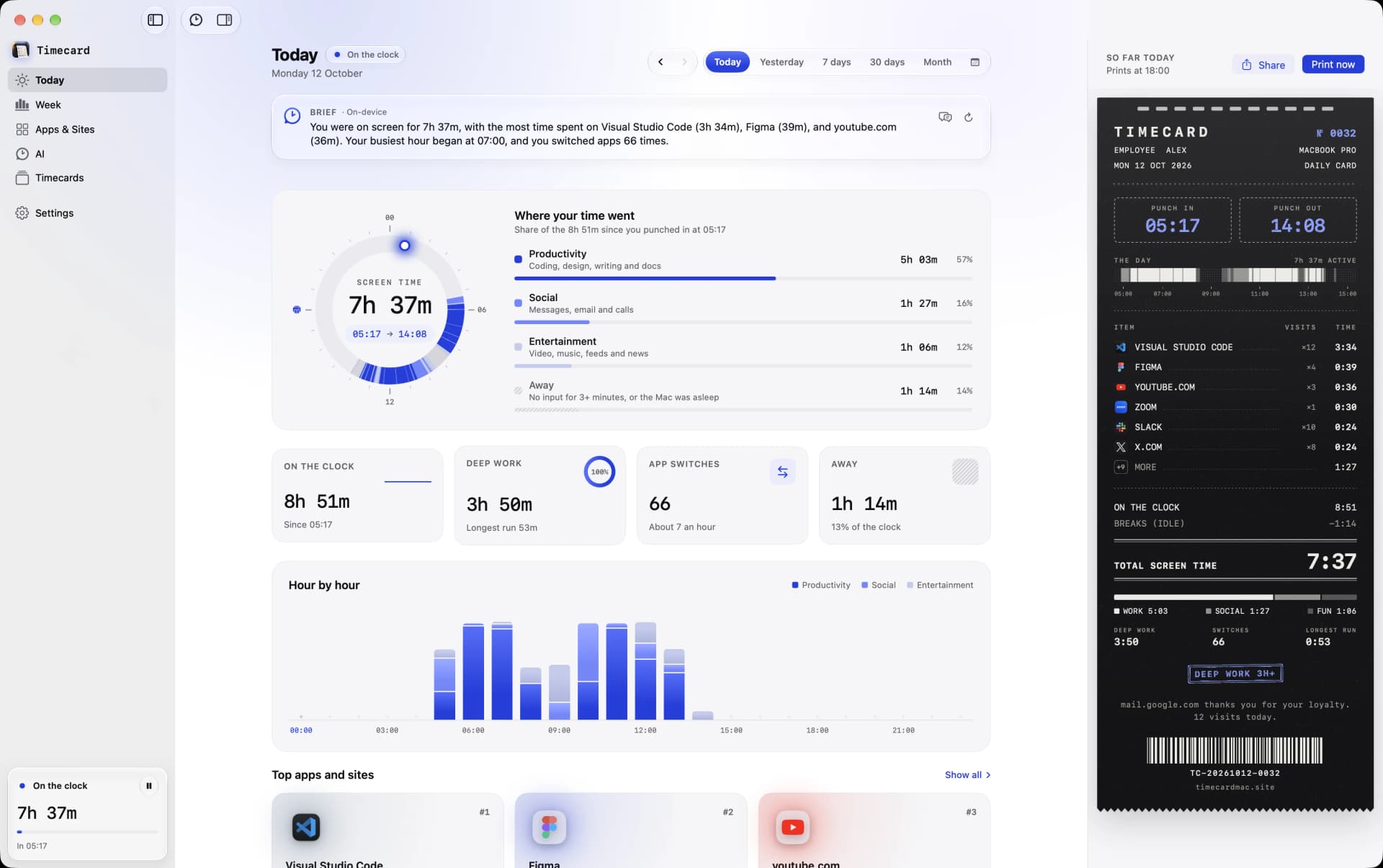
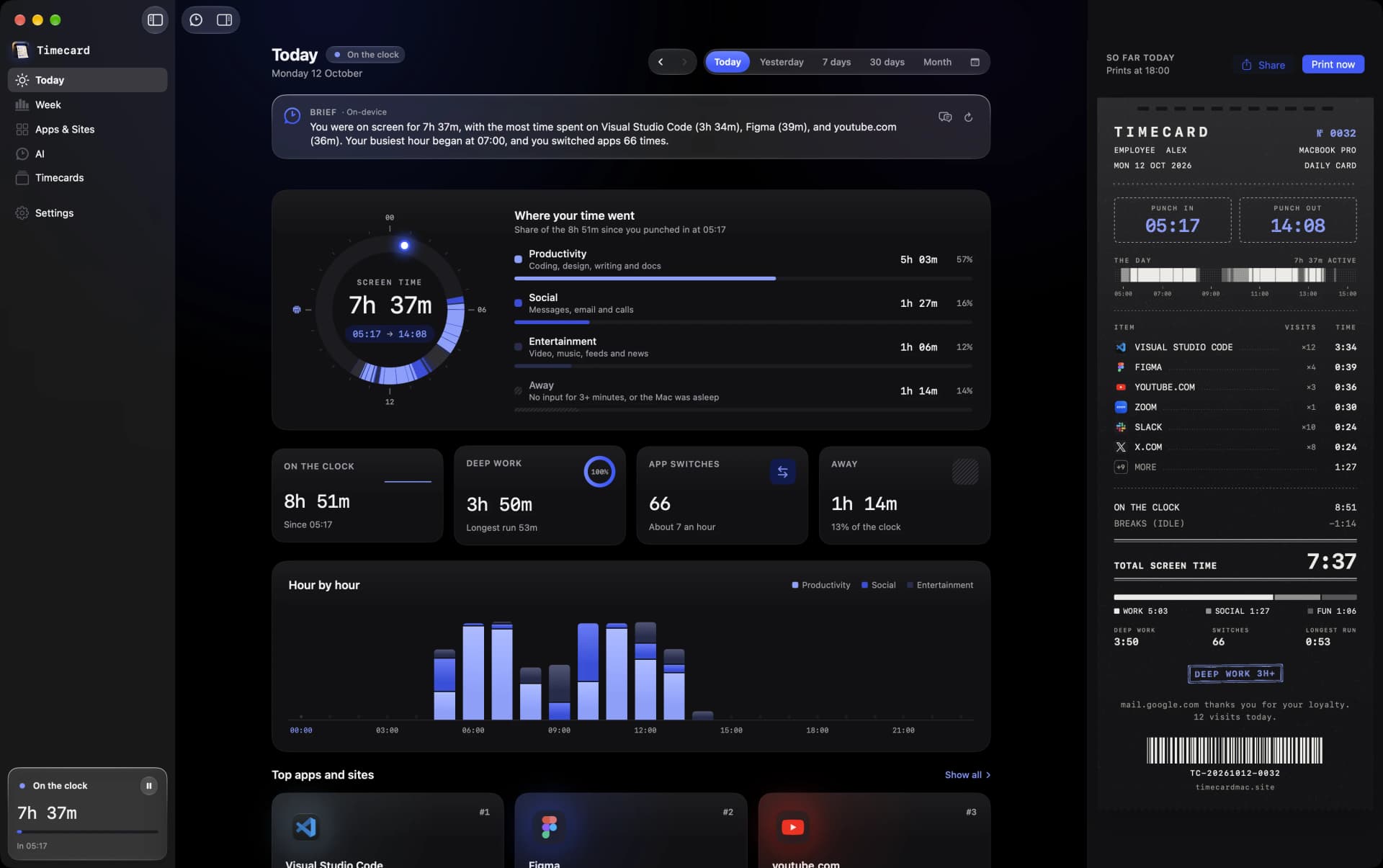
Every app and website, the limits that hold, and the card it prints at the end of the day.
Your year on the clock, played back.
Timecard has kept every minute of your year. Wrapped plays it back, scene by scene: every hour, your longest day, the app you never closed, when you peak, and a position for the year you actually had. Then it prints the whole year on one long card.
Everything in WrappedScreen Time Wrapped for iPhoneWhat's new in 2.3
A POSITION FOR THE YEAR
So far this year you've spent
HOURS
& 44 MIN
in front of this Mac.
64
full days, around the clock
38
forty-hour weeks
282
days on the clock, of 298 on file
 TimecardWRAPPED 2026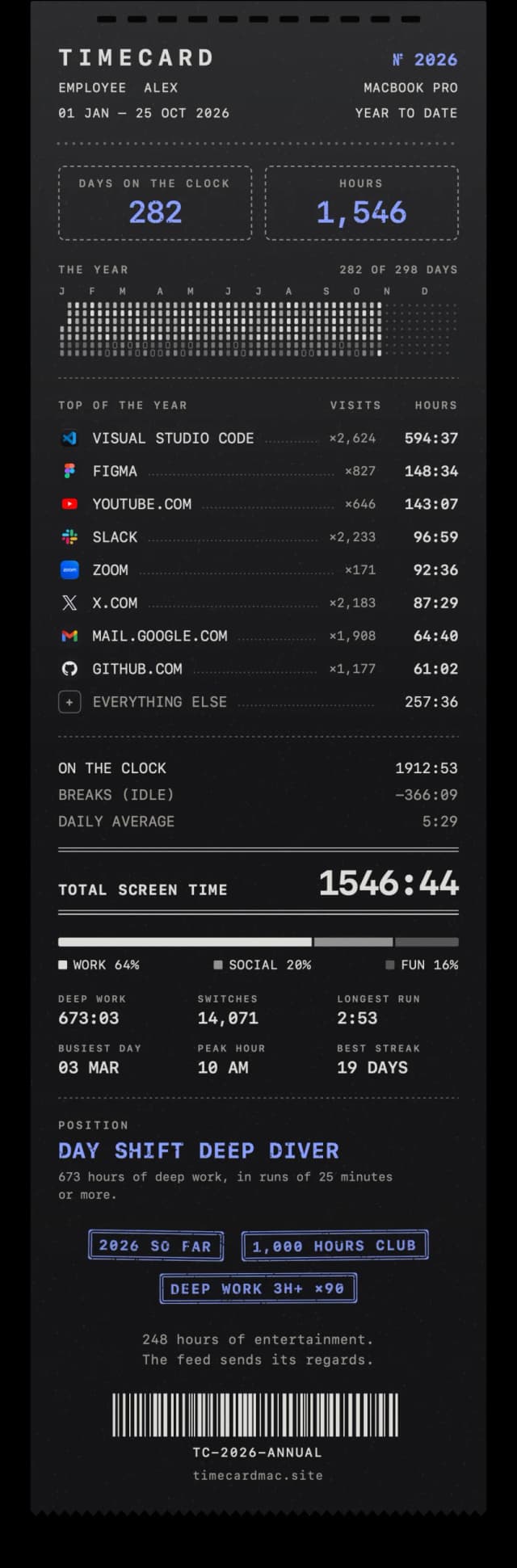
YOUR 2026 ON THE CLOCK
0hours
 Mostly Visual Studio Code · 282 days
On 2 December, the notch tells you
You don't have to open anything. On 2 December your year is wrapped, and at the first quiet moment the notch cranks through it and stamps your position. Click it and the whole story plays in Timecard, or print your card. Never in a call, a full-screen app or near your evening card.
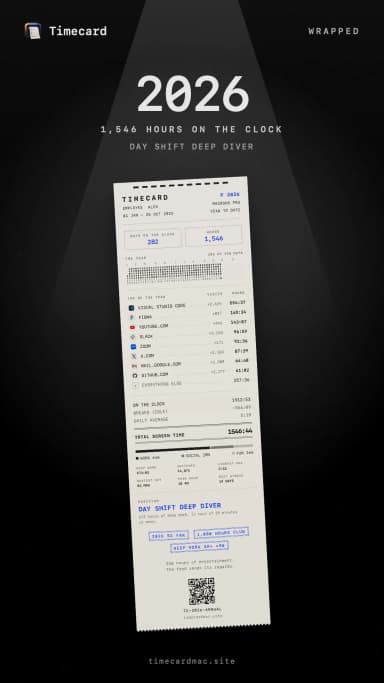
The whole year, on one card
Top apps, totals, records, your position and the stamps you earned, printed like your evening card. Tear it off, or share it as a story or a post.
12 scenes
Hours, your longest day, top five, categories, peak hour, deep work, months, switches and your agents' year.
A position
Read off your numbers: your shift and your role, like Night Shift Maker, with the reason.
Spotlight & Siri
Ask "How was my year in Timecard", or play or print it from the menu bar.
On your Mac
Worked out from your own history, on your Mac. None of it is uploaded.
Your AI gets a timecard too.
Timecard 2 reads the history your AI coding tools already keep on your Mac, and puts it next to your day: what it did, what your plan is really worth, and what your agents got done while you were away.
Claude Code usage trackerFree AI token counterTimecard vs WakaTime
READS, FROM THIS MAC
 Claude Code
 Codex
Codex
 Cursorocopencode
 Gemini CLI
YOUR AGENTS' TIMECARD · TODAY
When your AI was working, next to when you were.
YOU ON SCREEN
0h 00m
AGENTS WORKING
0h 00m
WHILE YOU WERE AWAY
0h 00m
API VALUE · 7 DAYS
$
What your plan is really worth
Every request priced at the API's list price, next to what your plan costs for the same days. Prices from Anthropic and OpenAI, your plan read from each tool.
CLAUDE CODE
Current session
Resets in 1h 12m
Know before you hit a limit
Your Claude and Codex limits as rings with reset countdowns. A notification at 80% and 95%, and another when it resets.
Ask Timecard⌘J
Ask anything about your time, from any screen. Apple Intelligence works it out on your Mac, from your own history.
You were on screen for 7h 49m today, mostly in VS Code, Figma and Linear. Your longest focused stretch was 1h 52m, before lunch.
A brief for every day
Today and Week open with two sentences on where the time went, written on-device from your numbers.


x.com
Daily limit 30m
13m
17m left today · 13m used
Daily limits for any app
Set 30 minutes on x.com, or two hours on Slack. A nudge from the notch at 80%, a punch when the time is up.
Work
Social
Fun
It files itself
Apps and sites Timecard hasn't seen before? Sort them with AI in one click. You can still re-file anything.
Timecard 2, in 59 seconds.
Sound on · captions included
Ask your agents where your time went.
Timecard has an MCP server. Claude, Codex and Cursor can read your Timecard and answer from your own history, without opening a single file themselves.
WORKS WITH
ClaudeCodexCursorYOUR AGENT · ASKING TIMECARD
demo dayAgents
Claude, Codex and Cursor can ask about your time.
{
  "mcpServers" : {
    "timecard" : {
      "command" : "/Users/you/.timecard/mcp"
    }
  }
}
Set up in Settings
Open Settings › Agents, copy the block for your agent, and paste it in. Your licence is enough, and agents can ask as often as they like.
screen_time
A day, a week, or any dates: categories, top apps and sites, punch in and out.
app_time
One app or site, the hours you used it most, and what's left of its daily limit.
hours
Hour by hour, when you were on screen and when you were focused.
ai_usage
Time, tokens, cost, projects, models, plan limits, and when your agents were busiest.
Nothing is sent anywhere. Agents get the numbers, not the text of your chats.
Hit your limit. Make your case.
At 80% the notch gives you a nudge. At 100% Timecard clocks the site out: the tab stops and the screen frosts over. Close it, or tell Apple Intelligence why you need more. It weighs the reason, and the page, on your Mac.
How to block websites on MacA study app blockerLimit screen time on Mac
WORKS WITH
 Apple Intelligence
 youtube.com
Your reason · the page it was on
“I need it for work, fixing a bug”
a coding tutorial
“I need it for work, fixing a bug”
an audio playlist for relaxation
“studying for my exam tomorrow”
a computer science lecture
“just one more video lol”
an entertaining challenge video
It reads the room
Apple Intelligence reads your reason and what the page actually is. Real work gets a little time; a reason that doesn't fit the page gets one question; habit gets a kind no. All on your Mac.
Screen Time · App Limits
 Facebook40mYouTube30m
 TikTok27m
 Instagram59m
 WhatsApp3h 00m
Timecard · Daily limits
40m30m27m59m3h 00mYour Screen Time limits, picked up
Already set App Limits in Screen Time, on this Mac or on your iPhone? Timecard brings them in and keeps them linked: change one in Screen Time and Timecard follows. iPhone apps land on the sites you use on your Mac.
80%
A nudge from the notch, with the minutes you have left.
100%
The tab stops, the screen frosts over, and the clock punches out.
On-device
Apple Intelligence reads your reason on your Mac. Your answer never leaves it.
Your call
Rather not explain? Pick 10, 15 or 30 minutes instead, or offer an ignore. In Settings.
01
Screen Time, as a real app.
Apple's Screen Time is a page in System Settings that forgets after four weeks. Timecard is a window, a menu bar readout and a printer, and it keeps every day you've ever had.
Today. The day on a 24-hour dial, hour by hour, top apps, and today's card printing live. Real screenshots, real day.
02
Every evening, your day prints out.
At the time you choose, a card feeds out of the notch one line at a time, with a printer tick and a trackpad tap per line. Every number on it comes from your real day.
VS CODE×384:12 SLACK×741:31X.COM×121:12
 FIGMA×60:58
 ZOOM×30:47YOUTUBE.COM×90:41
Slack thanks you for your loyalty.
74 visits today.
 Chrome4h 31m
ONE LONG BLUR CALLED “CHROME”
03
Websites, not just “Chrome”.
An afternoon in the browser is four hours of “Chrome” in most trackers. Timecard reads the host of the front tab every few seconds and splits that time into github.com, x.com and the rest.
Safari, Chrome, Arc, Brave, Edge and other Chromium browsers. It reads the site's name only, never the page, the title or what you type.
04
Same day, two receipts.
Screen Time hands you a slip that fades after four weeks. Timecard itemises where the day really went, and keeps the receipt.
Timecard vs Screen Time, in detail·vs RescueTime, Timing, Rize and more
 SCREEN TIME
SYSTEM SETTINGS · TODAY ONLY
TIMECARDKEEP№ 0274 · KEPT FOREVER
05
Today's total, one glance away.
A punch-card glyph and today's screen time sit next to the clock, counting as you work. Click it for the day at a glance.
- Punch in and out, and a strip of the day by category
- Your top five apps and sites, with visits
- Pause tracking, print early, or open the window
Try it: click the menu bar item, pause, hover the strip.
THU 1 OCT
5h 12m
In 08:51
Out now
Hover the strip
VS Code38×2h 12mSlack74×1h 01m github.com22×44m
 Figma6×38myoutube.com9×17m
06
A card worth posting.
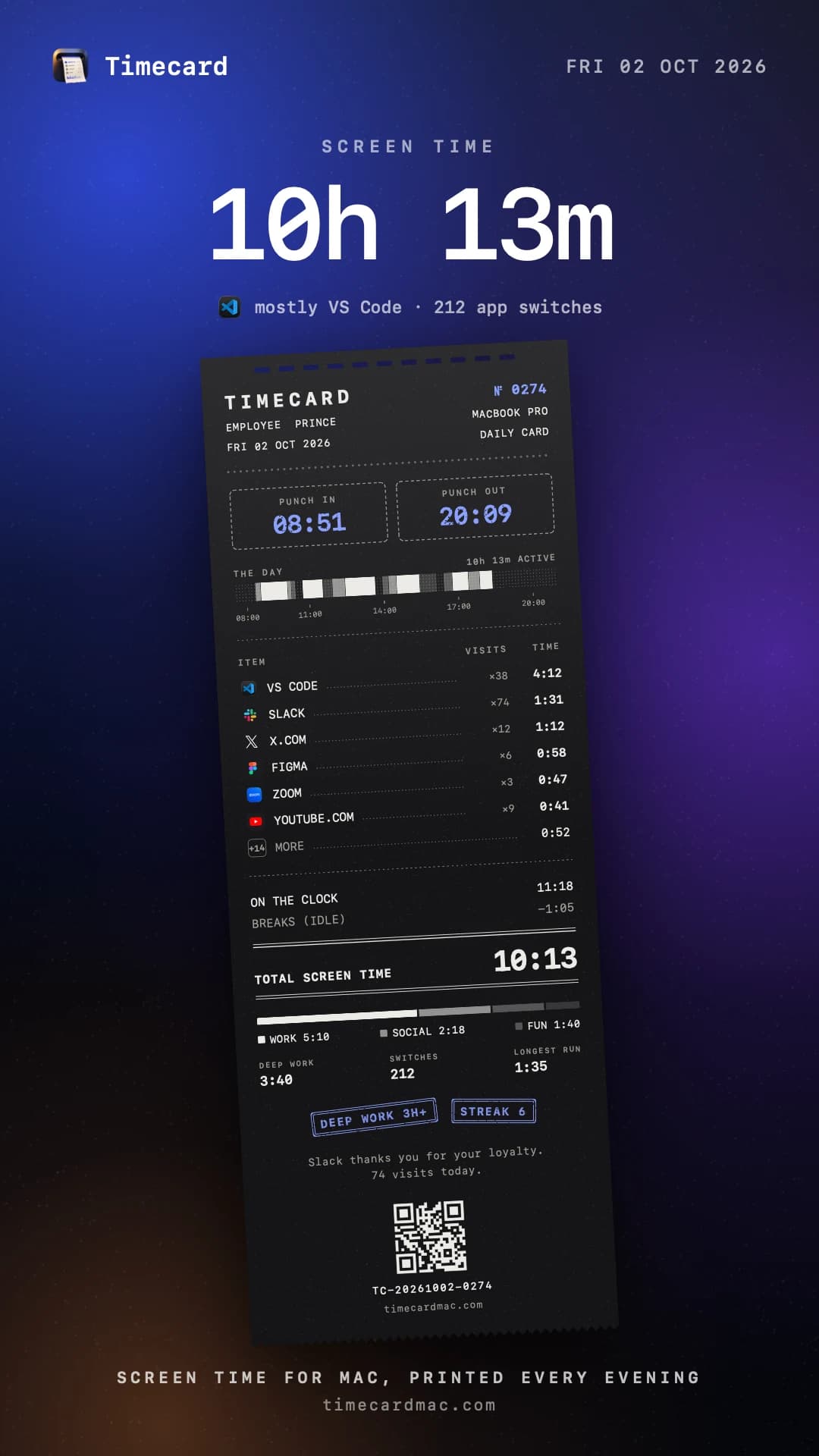
Share any day as a story or a post. Pick the backdrop and the paper, add a headline with your total, tilt the card like it was just torn off, and write your own caption.
Want to share without the details? Turn on categories only and every app becomes Work, Social or Fun. Copy it, save it, or send it straight from the share sheet.
07
What you do never leaves your Mac.
A screen time tracker sees every app you open and every site you visit. Timecard writes all of it to one file on your machine, and nothing about your day crosses the line.
THIS MAC
timecard
.sqlite
10,535 sessions
~/Library/Application Support
THE INTERNET
0
BYTES ABOUT YOUR DAY
08
Also included.
The smaller things that make it yours.
Weeks of history on day one
Import the app history macOS already kept, so the charts are full from the first minute.
Deep work and streaks
Unbroken 25-minute runs in productivity apps, a ring toward the 3-hour stamp, and streaks you can keep.
Any range you like
Today, yesterday, 7 or 30 days, a month, or any range on the calendar, with a typical day hour by hour.
Slack1h 31myoutube.comfolds into “+ 14 MORE” on the card
Hide from cards
Keep an app off your printed and shared cards. It still counts in your totals.
Your day, your hours
Up past midnight? Choose when the day ends, so late nights count toward the day before.
FigmaFile it your way
Productivity, Social, Entertainment or Other. Move any app or site and every chart follows.
09
Pay once.
Keep every card.
$5 for the first 1,000, rising in steps to $29 as licences sell. No subscription, and every update is included.
one time, every update included
$5 for the first 1,000 licences, then $9
$5
First 1,000 · now
$9
Next 100
$29
Regular price
- Every feature and every update, for good
- Both papers, all share backdrops, unlimited cards
- 14-day refund if it is not for you
macOS 14 Sonoma or later · Apple silicon and Intel · No account
TIMECARD
Frequently
asked questions
Something else? Email princeajuzie1@gmail.com and a person replies.
The app
How is Timecard different from Screen Time?
Screen Time is a page in System Settings and forgets after about four weeks. Timecard is a real app with a window and a menu bar readout, keeps your history forever in one file, splits browser time into real websites, ignores time you were away, and prints your day as a timecard every evening.
Where does the data come from?
Timecard records which app is in front while it runs, the website in the front browser tab if you allow it, and when you step away. On first launch it can also import the roughly four weeks of app history macOS already kept, so it is full from the first minute.
Can Timecard block apps and websites on Mac?
Yes. Set a daily limit on any app or website. At 80% the notch gives you a nudge, and when the time runs out Timecard blocks it: a site's tab goes blank, an app is covered. Close it, or ask for more time and say why. Apple Intelligence weighs your reason and the page, on your Mac. Works in Safari, Chrome, Arc, Dia, Brave, Edge, Vivaldi, Opera and Comet.
Can it use the limits I set in Screen Time?
Yes. With Full Disk Access, Timecard picks up your Screen Time App Limits, including ones synced from your iPhone, and keeps them linked: change one in Screen Time and Timecard follows. It only reads them. Apple doesn't let other apps change Screen Time, so a limit you change in Timecard applies to Timecard, and it shows you where to change it in Screen Time too.
Does it read what I type or what is on the page?
No. It never reads keystrokes, page contents or screenshots. For browsers it reads only the host name of the front tab, like github.com. When a daily limit runs out, it also reads that tab's title, so Ask for time knows what the page is.
Does it slow my Mac down?
It checks the front app when it changes and looks at idle time every few seconds. It writes to one small SQLite file. You will not notice it.
Which Macs does it run on?
Any Mac on macOS 14 Sonoma or later, Apple silicon or Intel. Macs with a notch get the card printed out of the notch; others print from the top of the screen.
Timecard 2
Is Timecard 2 a paid upgrade?
No. It's free for everyone who already has Timecard, and it installs itself like every other update.
Which AI tools does it read?
Claude Code, Codex, Cursor, opencode and Gemini CLI, from the history each one already keeps on your Mac. Cursor no longer saves token counts locally, so for Cursor you see time and chats, not tokens.
Does my AI history or my code leave my Mac?
No. Timecard reads usage numbers from those files: tokens, times, models and project folder names. It never reads your prompts or your code, and your AI history never leaves your Mac. Ask Timecard and the briefs run on Apple Intelligence on your Mac.
How accurate is the API value?
Each request is priced at Anthropic's and OpenAI's published list prices, including cache reads and writes. It's what the same work would cost on the API, not what your plan bills, and you can set what you actually pay in Settings.
What do I need for Ask Timecard?
macOS 26 with Apple Intelligence turned on. Everything else in Timecard 2 works on macOS 14 and later.
Wrapped
What is Timecard Wrapped?
Your year on your Mac, played back like Spotify Wrapped: your total hours, your longest day, the app you never closed, when you peak, deep work, app switches, your AI coding year and a position for the year, like Night Shift Maker. It ends on an annual card you can print from the notch and share.
When can I see my Wrapped?
On 2 December, when the year is wrapped: it counts 1 January to 1 December. The notch tells you once, at a quiet moment, and offers to print your annual card. Then open Wrapped in the sidebar and press Play, or say "Play my year" to Siri or Spotlight. Until then your year is sealed: the Wrapped page counts down, and Siri tells you how many days are left. Years gone by play any time.
Does Wrapped need a full year of history?
No. It uses whatever Timecard has on file, including the weeks it imported from Screen Time, and says "so far" or "on file since" where it matters. Your annual card reprints with every day you add, until the year is wrapped on 2 December.
Is my Wrapped uploaded anywhere?
No. Wrapped is worked out from the history in one file on your Mac. Nothing is uploaded, and the share image is made on your Mac when you ask for it.
Buying
How much does it cost?
$5 once for the first 1,000 people, then $9 for the next 100, then $29. No subscription, and every update is included.
Where do I download it again?
Anytime at timecardmac.site/download/Timecard.dmg, for a new Mac or a reinstall. The licence key in your Polar email unlocks it.
Is there an account?
No. You buy a licence key and paste it into the app. There is nothing to sign in to.
What if it is not for me?
Email us within 14 days for a full refund.
What does Timecard send over the network?
Nothing about your day. It checks your licence key, the current price and for updates, and sends a few anonymous usage counts, like "a card was printed", that you can turn off in Settings › General.